Photo Background Blur
Keep a subject sharp and blur everything around it for a portrait-mode look, right in your browser · free, no signup
See Photo Background Blur in action
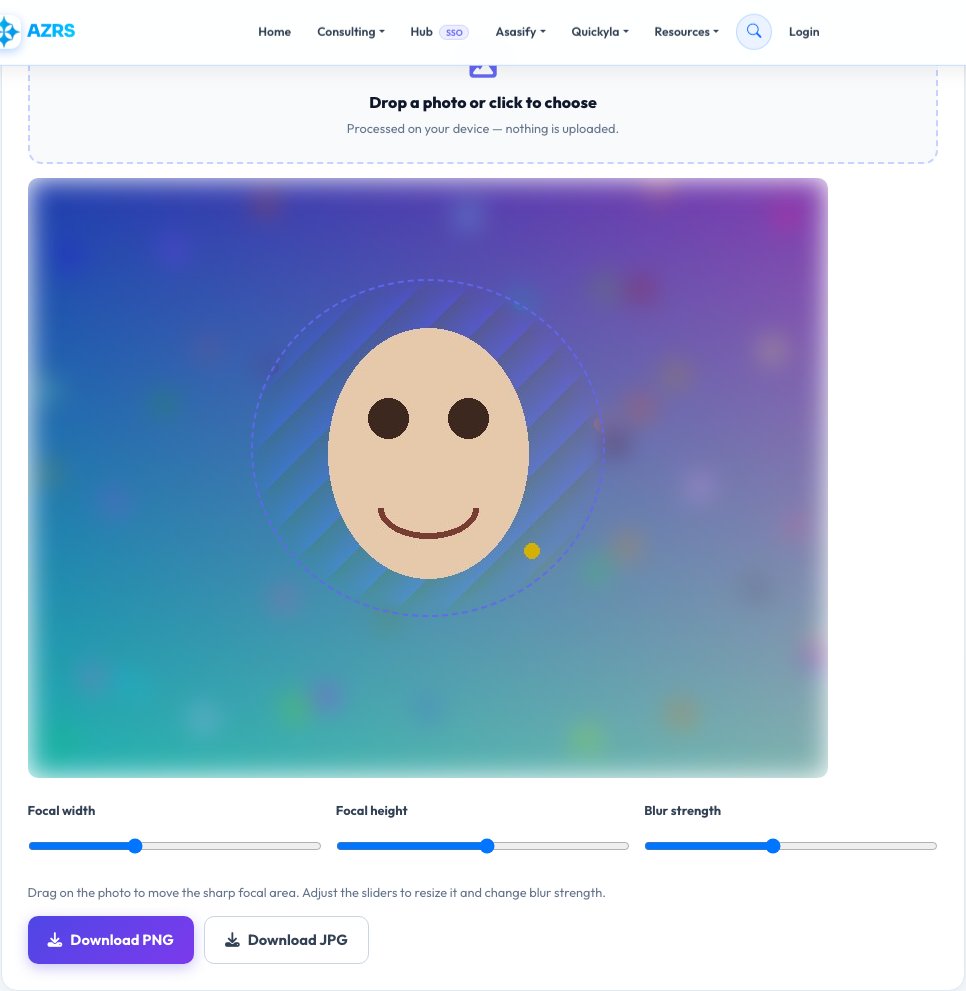
Free Photo Background Blur — Portrait-Style Effect in Your Browser
Give any photo a portrait-mode look by keeping one area sharp and progressively blurring everything around it, the same visual effect a phone's portrait mode or a wide-aperture camera lens produces. Upload a photo, drag and resize an oval focal area over your subject, and the rest of the image is blurred using a real multi-pass box blur with a soft-edged transition so the effect looks natural rather than having a hard cutout ring.
Being honest about what this does: it is a real, adjustable optical-style blur applied outside a region you choose — not AI subject detection that automatically finds a person or object. For most portrait and product photos, manually positioning the sharp oval takes only a few seconds and gives you full, predictable control over exactly what stays in focus.
Key features
Real adjustable blur, not a filter
Uses an actual multi-pass box blur with a soft feathered edge, not a single flat blur pass.
You control the focal area
Drag and resize the sharp oval precisely instead of trusting automatic subject detection to guess correctly.
Adjustable blur strength
From a subtle depth-of-field hint to a strong bokeh-style background.
Fully private
The photo is processed on canvas in your browser and never uploaded.
How to use it
- Upload a photo.
- Drag and resize the oval over the subject that should stay sharp.
- Adjust the blur strength slider.
- Download the result as PNG or JPG.
Worked example
Example
A photo of a person standing in a cluttered room -> position the oval over their face and shoulders -> the room behind them blurs smoothly while they stay crisp, similar to a phone's portrait mode.
Who uses this tool
Anyone taking product or portrait photos
Make a plain phone photo look more professional without a wide-aperture lens.
Social media users
Draw attention to the subject by softening a busy background.
Sellers and freelancers
Clean up listing or profile photos taken in imperfect settings.
Tips for the best results
- Make the oval slightly larger than the subject so the transition edge falls in empty background, not across them.
- A moderate blur strength usually looks more natural than the maximum setting — very strong blur can look artificial on close inspection.
- Works best on photos where the subject is reasonably centered and separated from the background depth-wise.
- For product photos on a plain background, a smaller, tighter oval keeps more of the product itself fully sharp.
Common mistakes to avoid
- Expecting automatic AI person-detection — this tool gives you manual, precise control instead, which is often faster for a single photo than fixing a wrong automatic guess.
- Setting the oval too small so part of the subject falls into the blurred zone.
- Using maximum blur strength on a photo with fine subject detail near the edge, which can make the transition look obviously artificial.
Why use AZRS QuickFix?
It is 100% free, needs no signup and has no watermark or usage limits. The tool runs in your browser, so what you type stays on your device, and it works on phones, tablets and desktops. New tools are added every week — bookmark this page or browse the full QuickFix toolbox.
Frequently asked questions
Does this use AI to detect the subject automatically?
No — you position the sharp focal oval yourself, which gives precise, predictable control instead of relying on automatic detection that can guess wrong.
Is this the same as a real camera's depth of field?
It's a visual approximation applied after the fact using a real multi-pass blur, not an optical effect captured by a lens, but it produces a similar portrait-style look.
Is my photo uploaded to a server?
No, everything is processed locally using the HTML canvas API.
What file formats can I download?
PNG (lossless, larger file) or JPG (smaller, adjustable quality).
Can I blur a sharp circle instead of an oval?
The focal area can be resized to be roughly circular or stretched into an oval or wide ellipse depending on your subject's shape.
Is this free?
Yes, completely free with no watermark or signup.