Meeting Time Planner Across Time Zones
Find a meeting time that works across several time zones at once · free, no signup
See Meeting Time Planner Across Time Zones in action
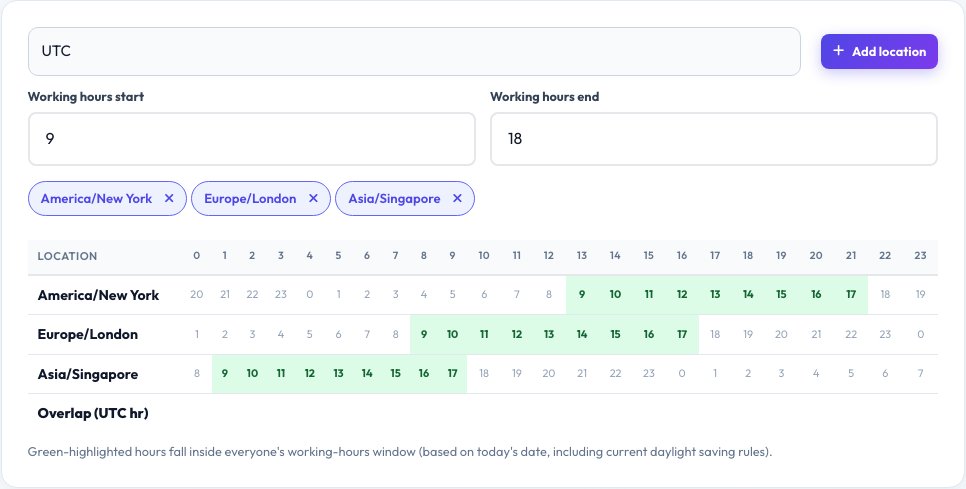
Free Meeting Time Planner Across Time Zones
Scheduling a call across three or four time zones by converting each one individually is slow and error-prone, especially around daylight saving changes. This planner lets you add every city or time zone involved in one list, then shows a full 24-hour grid with each location's local time lined up side by side, so you can see at a glance which hours are reasonable working hours everywhere at once.
Hours that fall within typical working hours (9am–6pm by default, adjustable) in every added location are highlighted, making it easy to spot the actual overlap window instead of mentally converting each time zone one at a time. Pick a highlighted slot and see the exact local time it represents in each city.
Key features
Compare multiple time zones at once
Add as many cities as your meeting needs.
Full-day side-by-side grid
See every location's local time lined up together.
Working-hours overlap highlighted
Instantly spot slots that work for everyone.
Adjustable working-hours window
Change the 9–6 default to match your team's actual hours.
How to use it
- Add each city or time zone involved in the meeting.
- Set the working-hours window if 9am–6pm doesn't match your team.
- Scan the grid for highlighted overlapping hours.
- Note the exact local time shown for each location at your chosen slot.
Worked example
Example
New York, London and Singapore added → the grid highlights roughly 9–11am New York time, which lines up with 2–4pm London and 9–11pm Singapore, the only real overlap in normal working hours.
Who uses this tool
Remote and distributed teams
Find a fair meeting slot across every team member's time zone.
International sales and support teams
Schedule client calls that respect everyone's local hours.
Event organisers
Plan a webinar or livestream time that reaches a global audience.
Tips for the best results
- Re-check the grid around daylight saving transition dates, since the offset between zones can shift by an hour for a few weeks each year.
- If there's no truly fair overlap, rotate the inconvenient time slot between team members across different meetings.
- Always state the time zone explicitly in the invite, even after using this tool, to avoid confusion for anyone checking their calendar later.
- Use city names rather than raw offsets like UTC+5 — offsets alone don't account for daylight saving.
Common mistakes to avoid
- Assuming a time zone's offset from UTC never changes — daylight saving shifts it for roughly half the year in many countries.
- Picking a slot that's technically within working hours but right at the very edge (like 6pm or 9am) for one location, leaving no buffer.
- Forgetting to mention which time zone the final meeting time is stated in when sending the invite.
Why use AZRS QuickFix?
It is 100% free, needs no signup and has no watermark or usage limits. The tool runs in your browser, so what you type stays on your device, and it works on phones, tablets and desktops. New tools are added every week — bookmark this page or browse the full QuickFix toolbox.
Frequently asked questions
Does this account for daylight saving time automatically?
Yes, it uses each location's current time zone rules, including daylight saving, based on today's date.
How many locations can I compare?
There's no fixed limit — add as many cities as your meeting involves; the grid stays readable up to a reasonable number, typically 6-8.
Can I change what counts as "working hours"?
Yes, adjust the working-hours window (default 9am–6pm) to match your team's actual expected hours.
What if there's no overlapping working-hours slot for everyone?
The grid will show no highlighted overlap; in that case, consider rotating an inconvenient time between team members across meetings, or shortening the working-hours window slightly for one location.
Is this the same as a generic time zone converter?
It builds on the same underlying conversion but is designed specifically to compare several zones at once and highlight overlap, rather than converting a single time between two zones.
Is my location data saved?
No, the list of locations you add exists only for your current session and isn't stored or sent anywhere.