How to get started with Shortcuts on your MacBook
Automate your Mac with ease using Shortcuts and Apple Intelligence. Shortcuts has been available on Mac since macOS Monterey, but it's one of those utilities many Mac users have never explored. At f…
Automate your Mac with ease using Shortcuts and Apple Intelligence.
Shortcuts has been available on Mac since macOS Monterey, but it's one of those utilities many Mac users have never explored. At first, it can seem too complicated. You have to know which actions to choose and how to connect them, then hope it all works.
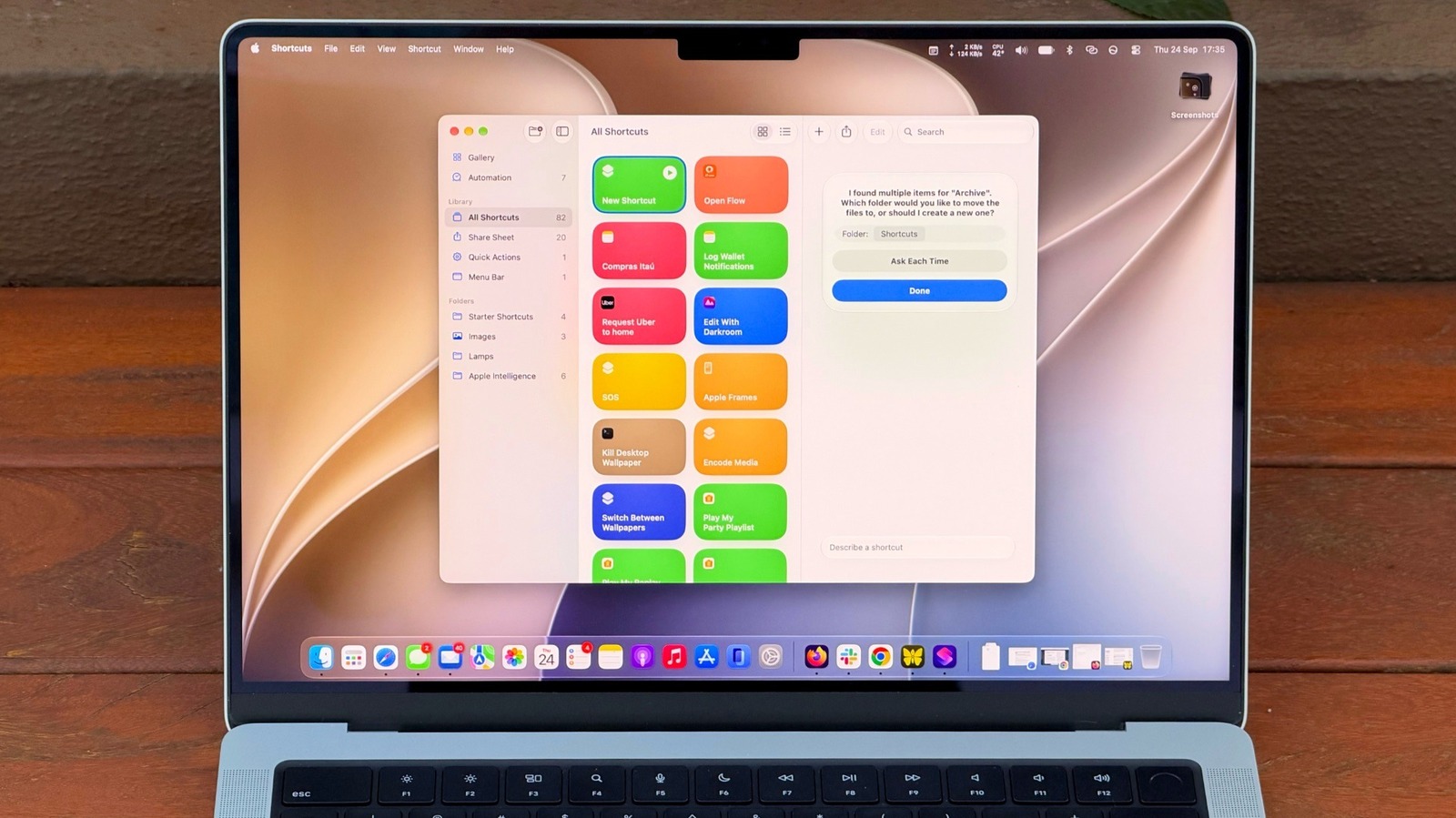
But macOS 27 Golden Gate changes that with Describe a Shortcut, which lets you type exactly what you need and have Shortcuts do the heavy work for you with AI . It doesn't always work, but it makes the app much easier to use — especially if you're not an expert.
If you're not familiar with Shortcuts, it's an automation tool where you create scripts to handle tasks on your devices. Apple's own example is a shortcut that texts your spouse with an estimated arrival time based on traffic when you're leaving work. But you can get much more complex, like a shortcut that checks your calendar and the weather to give you a summary of what to expect today.
There are many possibilities, and now with macOS 27, it's much easier to master the app.
Creating a new shortcut takes a few seconds. Open the Shortcuts app on your Mac and click the Plus button to enter a prompt. The more details you provide, the more likely the app is to get your shortcut right. A command like "Clean up my Downloads" might be too vague for the app to understand what you really want. Instead, try something like "Every Friday, move anything in my Downloads folder older than 30 days into a folder called Archive." You're more likely to end up with a working shortcut when you provide clear details.
This is a good example of how Shortcuts are helpful for tasks you often forget to do; no one really cleans out their Downloads folder unless they're trying to free up space. Plus, you can check the result right away by opening the folder and looking at what moved. If the shortcut moved too much, re-enter the prompt with even more specific details.
A shortcut can also be great for summarizing long text with Apple Intelligence. Try something like "Take the text on my clipboard, summarize it in three sentences and save it to a new note." Then copy a long article or an email, run the shortcut and you'll have the short version in Notes.
Read Full Story at Engadget →